Calendar capture for Windows
Capture a plan.
Make it an event.
Select a chat message or an event poster on your screen. Check the time and place, then save the event to your calendar.
See how it works
From capture to calendar
Windows app · Chinese interfacePress Alt + Shift + S and drag across a message or poster. You can also paste an image or text from your clipboard.
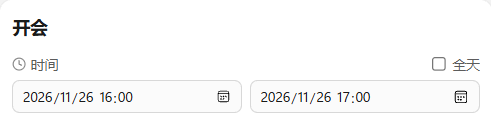
Check the date, time and reminder. Choose a calendar, then select “Add to calendar.”
 SnapCalCapture
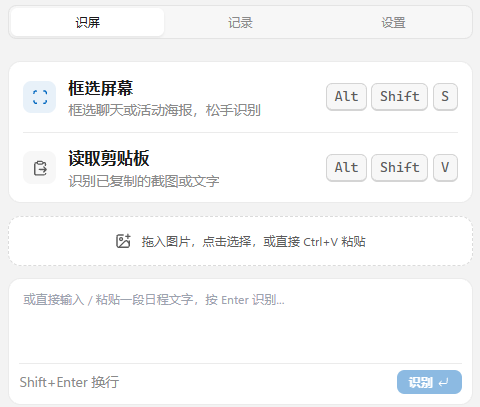 SnapCalReview event


Connect Google Calendar
Connect your account in SnapCal settings and choose where each event goes.
Learn how your data is used- Choose a calendar
- Pick any calendar you can write to, including shared calendars you can edit.
- Check for conflicts
- SnapCal checks the calendars in your conflict settings and shows the titles and times of overlapping events.
- Save the event
- Once you confirm, the event appears in your chosen calendar. You can disconnect Google Calendar in settings at any time.